
Follow This Object
The camera can track a selected object during play, usually the main character, target object, or important moving machine part.

Object Game Settings
Camera Settings decide when the game camera should follow an object or focus on important movement.
What it controls
Use this page as the detailed reference for the Camera Settings group inside the Object Game Settings menu.
The camera can track a selected object during play, usually the main character, target object, or important moving machine part.
Camera behavior controls what the player can see while the level is running.
A camera can follow a moving platform, vehicle, or target so long mechanisms stay on screen.
Jump To Solve levels usually need camera follow on the character or a carefully chosen focal object.
How it works
These points describe what the system does after the level starts and the editor data becomes live gameplay behavior.
The camera uses the configured object as its tracking target.
As the target moves, the view shifts so the player can keep reading the action.
Camera behavior should respect the intended level area so it does not reveal empty or confusing space.
If the followed object is destroyed or disabled, the level should still remain understandable.
Setup flow
Use this checklist while building or debugging a level that uses Camera Settings.
Track the object the player cares about most, not necessarily the most active physics body.
Fast objects can make the camera feel jumpy, so test high-speed machines.
Make sure the camera gives enough look-ahead for platforms, hazards, and goals.
Do not follow small debris or temporary objects unless that is the intended cinematic effect.
Creator guide
Test the camera as part of the complete route the player will travel.
Enable the required follow axes. Adjust section dimensions, directional speeds and padding with the section overlays visible.
Use the ground-contact snap rules to keep the section from switching unnecessarily during a jump.
Check the followed object after checkpoint respawn and after a teleport commits its destination. Both should bring the view to the current followed instance.
Configure parallax in the right-side Scene Layers menu. Static scenery and moving parallax layers use different layer behavior.
Connected systems
Most Ancient Machines behavior comes from combining several settings groups together.

Platform Settings configure platform-level behavior such as main character, ground, jump, and left-right movement.
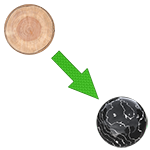
Follow Object Settings make one object track another object, including smart-follow style behavior.

Position Settings configure object placement, movement-related references, offsets, and directional behavior.