What It Opens
Opens the advanced path editor for object movement, timing, activation, looping, reversing, rotation, and completion behavior.
Selected object toolbar
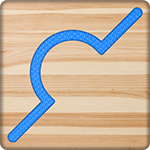
Appears for objects that can move along an advanced path, especially kinematic non-scene objects. It opens path speed, loop, reverse, wait, rotation, activation, and path-completion trigger options.
When it appears
Appears for kinematic, non-scene objects that can use path-based movement.
Opens the advanced path editor for object movement, timing, activation, looping, reversing, rotation, and completion behavior.
Appears for objects that can move along an advanced path, especially kinematic non-scene objects. It opens path speed, loop, reverse, wait, rotation, activation, and path-completion trigger options.
What each control does
Advanced Path is a complete movement system for kinematic objects. These controls define when the object starts, which route it follows, how every segment behaves, and what happens when the path is finished.
Turns the selected object into a platform controlled by the path system. The object must be kinematic for the path to move it predictably through physics space.
Chooses between Circle/Ellipse movement and Advanced Path. Circle/Ellipse is good for simple orbital movement; Advanced Path unlocks authored segment-by-segment routes.
Starts the platform automatically when the level begins. Turn it off when the path should wait for touch, contact, trigger-zone, or chip logic.
Makes the object continue after it reaches the end. Without reverse-on-complete it returns to the first segment; with reverse-on-complete it can travel back through the path.
Limits how many times the loop can run. A value above zero makes a repeating mechanism stop after a set number of cycles.
Starts movement from the reverse direction. This is useful when the same path should be reused but the level needs the platform to begin from the far side.
Stops the path when the final segment is reached. Use this for one-shot machines, puzzle locks, lifts that should park, or objects that hand off to another system.
Changes the direction when the path is complete. Instead of restarting from the beginning, the platform travels back through the same authored route.
Adds a pause before the reverse movement begins. This creates elevator wait time, patrol pauses, timed traps, or readable platform stops.
Multiplies the speed while moving backward. Use it when a platform should return slowly, snap back quickly, or make the return trip feel different.
Reverses the object's angular velocity when the path reverses. Use this for rotating platforms or machine parts whose spin direction should match travel direction.
Destroys the object after it finishes the path. This supports temporary carriers, disappearing hazards, falling parts, and one-use puzzle elements.
Waits before destroying the object on completion. It gives the player time to see the machine result before the object disappears.
Fires trigger-zone logic when the path finishes. This lets a moving platform open doors, start another path, enable hazards, or signal that a machine step is solved.
Detaches carried or attached objects when the platform reaches the end. Use this when an object should be delivered, dropped, launched, or released from a moving machine.
Applies a chosen velocity after detach. Amount controls launch strength, while angle controls the direction of the released object.
Offsets the whole path rotation. This is the global angle for the route, while each segment can still have its own rotation value.
Sets the default platform speed. Individual line speed can override this per segment, and chip outputs can modify path speed during gameplay.
Defines how many path segments are active. More lines allow complex routes made from straight and curved pieces.
Selects the segment being edited. The current segment can have its own type, width, rotation, speed, delay, flip, and visual style.
Chooses the segment where the platform begins. This is useful when the path is already drawn but the object should enter the route from a later point.
Chooses the current segment shape: Line, Half Circle, or Quarter Circle. Straight lines create direct movement; curved lines create arcs and turns.
Inverts the current curved segment. For half-circle and quarter-circle pieces, this changes which side the arc bends toward.
Adds a wait before the selected segment starts. Use it to create step-by-step machine timing or small pauses at specific waypoints.
Controls the length of a straight segment or the radius/size of curved movement. Larger values make longer travel or wider arcs.
Reserved for segment shapes that need a second dimension. It is part of the line data and can support path shapes that are not purely one-dimensional.
Rotates the selected segment. Combine this with global path rotation to point each segment exactly where the machine should move next.
Overrides the default path speed for one segment. Set it to zero to use the global speed, or set a value to make one segment faster or slower.
Controls the drawn helper line style: full line, interrupted line, or dotted line. It affects how the path is visualized while editing.
Hides the path guide line. Keep it visible while authoring and hide it when the visible path would spoil the puzzle or clutter the scene.
Controls the thickness of the path guide line. It helps readability while editing dense or zoomed-out levels.
Controls path guide transparency. Lower alpha keeps the route visible without overpowering gameplay objects.
Sets the color of the guide path. The currently active segment can be highlighted while the path is being inspected.
Uses a texture on the path guide instead of a simple solid stroke. This is visual feedback for authoring and debugging the path route.
Texture type, compression, bevel texture, vertical flip, and horizontal flip control how the path guide texture is drawn along the segment.
Enables a glow on the path guide. Color, alpha, blur, and quality make important or selected paths easier to see.
Lets object contact change the path state. The contact action can Activate, Deactivate, or Toggle the platform.
Lets player touch change the path state. It uses the same Activate, Deactivate, and Toggle actions as contact activation.
Practical setups
Use these as starting patterns when building Ancient Machines levels.
Use two straight lines, Auto Start on, Reverse On Complete on, Reverse Delay at both ends, and Loop on. Tune Reverse Speed Factor if the return should feel heavier or faster.
Turn Auto Start off, enable Activation On Contact or Touch, and use Detach On Complete with custom velocity so the carried object is released into the next machine part.
Turn Loop off, use high speed on one segment, then Pause On Complete or Destroy On Complete. Add Activate Trigger Zone On Complete to chain the next hazard.
Mix Line, Half Circle, and Quarter Circle segments. Use Flip Line to bend arcs the other way and Line Rotation to aim each curve into the next segment.
Use Line Start Delay on individual segments. The object can pause at a gear, move to a trigger, pause again, then activate another system on completion.
Use Is Line Hidden after tuning the route. The player sees only the machine behavior, while the authored path remains invisible during normal play.
How to use it
Use this flow while building or debugging a level that depends on this control.
Open Advanced Path and define the path points.
Then connect activation rules if the path should not start immediately.
Small speed changes can completely change a physics puzzle.
Connected controls
The selected-object toolbar is contextual, so this control usually works together with nearby controls and game systems.