What It Opens
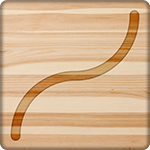
Toggles bezier behavior for the selected point and works with curve precision controls.
Selected object toolbar
Enables or disables bezier behavior for the selected physics-line edit point, allowing curved line segments instead of only straight segments.
When it appears
Appears while editing a selected physics-line point.
Toggles bezier behavior for the selected point and works with curve precision controls.
Enables or disables bezier behavior for the selected physics-line edit point, allowing curved line segments instead of only straight segments.
What each control does
These are the practical controls, values, and toggles connected to this toolbar entry.
Turns the selected edit point into a bezier point so the connected segment can curve.
Moves the curve control point that defines the shape of the bend.
Controls how many generated points are used to approximate the curve. Higher precision is smoother but heavier.
Locks curve handles so accidental drags do not distort the current curve.
The control applies only to the currently selected physics-line point.
The final curve becomes collision geometry, so it affects rolling, sliding, bouncing, and snagging.
Turns the point back into straight-segment behavior.
If a curve needs too many corrections, deleting a point and simplifying the segment can produce cleaner physics.
How to use it
Use this flow while building or debugging a level that depends on this control.
Enable Bezier Point.
Keep precision as low as possible while still looking smooth.
If objects snag or bounce oddly, simplify the curve.
Connected controls
The selected-object toolbar is contextual, so this control usually works together with nearby controls and game systems.