What It Opens
Switches the bottom toolbar to actions that can safely apply to the current selection.
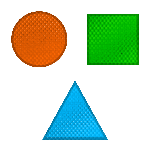
Selected object toolbar
When several objects are selected, the toolbar focuses on group operations, copying properties, moving, deleting, and other actions that apply to the current selection.
When it appears
Appears when more than one object is selected at the same time.
Switches the bottom toolbar to actions that can safely apply to the current selection.
When several objects are selected, the toolbar focuses on group operations, copying properties, moving, deleting, and other actions that apply to the current selection.
What each control does
This page covers two related workflows: editing several selected objects together, and using the real Group Object system where child objects become one controlled container.
When several objects are selected, the editor uses the combined bounds of the selection. Movement, duplicate, rotate, scale, and delete operations use that selection as one working set.
Only settings that can apply safely to the selected objects are shown. Mixed object types can hide controls that only make sense for one exact object.
Opens physical settings that can be applied to the current selection when the selected objects support those settings.
Opens game-system settings that can be applied to the selected objects. This is useful when several level parts need the same trigger, damage, collect, or behavior setup.
Duplicates the selected set left, up, right, or down while keeping properties. This is the fastest way to build repeated machine patterns.
Moves all selected objects together. Use it for alignment after selecting a whole machine section or repeated puzzle assembly.
Scales selected objects together when allowed. Final collision and joint behavior still needs testing because scaling can change physics results.
Rotates the selected set together. Rotation is useful for copying a built mechanism and reusing it at a new angle.
Locks horizontal or vertical dragging so the selection can move only along one axis. This prevents accidental drift while aligning parts.
A real group can contain multiple children, but at most one non-scene physics object. Other children should be scene objects. Nested groups are not allowed.
The group behaves as a container. Moving, rotating, scaling, or filtering the group propagates to its children through the display hierarchy.
Selects which child inside the group is being inspected or edited through group controls. It is especially useful with focus mode and movie-frame setup.
Moves one child relative to the group center. Offsets are stored in meters so the group can be saved, rebuilt, and transformed as one unit.
Shows only the current child while editing. Use it when a group has many overlapping parts and the current child would otherwise be hard to see.
When focus mode is enabled, the previous child can remain visible with reduced alpha. This helps tune movie-like frame-to-frame motion.
Controls how visible the previous frame/child is during focus mode. Lower values give a ghost reference; higher values show stronger overlap.
Makes the group behave like a frame-based animation where children can act as frames. This can create animated machinery, signs, indicators, and decorative motion.
Controls whether the current child participates in the group movie animation. Excluded children can remain as static parts of the group.
Sets how long the current child/frame is shown during group movie playback.
Enables tweened transitions between group movie frames. This makes the animation blend instead of snapping instantly.
Chooses the easing/tween curve used by the transition. Linear gives constant motion; other tween types can feel softer or more mechanical.
Chooses what changes during transition: Alpha, Scale, Blur, or Pixelate. Each creates a different style of frame change.
Controls how long the transition lasts. Short durations feel snappy; long durations feel like smooth morphing or slow machine activation.
Applies compatible movie settings across all children/frames instead of only the current child.
Automatically arranges the group children into a chosen pattern. This is much faster than manually placing every child.
Available patterns include Horizontal Center, Vertical Center, Center, Circle, Ellipse, Box, Triangle, Crescent, 5 Point Star, 4 Point Star, Half Circle, Half Circle Full, Heart, Diamond, Plus, and Plus Thickness.
Includes the main physics child in the alignment operation when a group has a physics child. This is only available when the group structure supports it.
Controls the horizontal size of alignment patterns that use a size value, such as ellipse, box, star, heart, diamond, and plus layouts.
Controls the vertical size of alignment patterns that need a second dimension. Circle uses one size; ellipse and many shape layouts use both X and Y.
Group children are sorted by scene layer, layer group, and display container index so front/back order remains predictable inside the group.
If a group contains a non-scene physics child, that child anchors the group's physics behavior. Group rotation combines the group rotation with the physics child's local rotation.
Children inside a group are not individually touchable/selectable while grouped. Use current child and focus mode, or remove the child from the group for standalone editing.
Trigger zones can change group movie playback, loop-frame range, or force a specific movie frame. This lets a puzzle system drive grouped animation.
Chip output targets can drive Movie Clip Frame, Movie Clip Start Loop Frame, and Movie Clip End Loop Frame for logic-controlled group animation.
Group animation
Grouped objects can be used as a frame-based animation. This is especially powerful for vector artwork, animated machine states, indicators, and trigger-driven puzzle feedback.
A group can be built entirely from vector or scene objects. Each child can become a frame, so you can animate drawn shapes without a sprite sheet.
Use Current Child to inspect each frame. Include In Movie decides whether that child is part of playback or stays visible as a static part of the group.
Enable Group Focus Mode and Show Previous Frame to align one frame against the previous frame. Previous Frame Alpha controls how strong the ghost frame is.
Movie Frame Duration controls how long each frame stays visible. Enable Transition can blend frames with Alpha, Scale, Blur, or Pixelate effects.
Trigger zones and chips can start, stop, toggle, set a specific MovieClip frame, or change the start and end loop frames.
After the group is tuned, save it as a library object so the same animated vector machine or multi-state object can be reused in other levels.
Practical setups
Use these patterns when deciding whether to multi-select or create a real group object.
Multi-select all parts, duplicate in the needed direction, move the copy into place, then select individual objects to retune joints, trigger zones, and physics.
Create a group from several scene-object frames, enable Play Group As MovieClip, use Alpha or Pixelate transition, and tune each frame duration.
Use one physics child with several scene children, align children in Circle or Ellipse, and rotate the group so visual parts stay attached to the physical anchor.
Use Align Group Children with 5 Point Star, 4 Point Star, Circle, or Plus Thickness. Adjust X Size and Y Size until the repeated children form the intended shape.
Use Focus Mode with Show Previous Frame so each child/frame can be aligned against the previous one, then drive the movie frame from a trigger zone or chip.
Group only scene objects when the cluster should be decorative and easy to move as one unit without adding extra physics behavior.
How to use it
Use this flow while building or debugging a level that depends on this control.
Use group-safe movement, scale, rotation, or duplication controls.
Some controls may appear only when the selected group supports them.
Final physics, joints, paths, and game settings usually need single-object checks.
Connected controls
The selected-object toolbar is contextual, so this control usually works together with nearby controls and game systems.